
I’m at the property but cannot get inside. What should I do?
Stay on-site and follow the access troubleshooting process to help resolve the issue as quickly as possible and ensure you're compensated for your time.
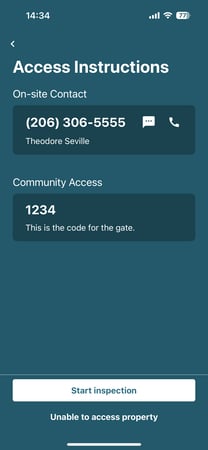
On the Access Instructions screen, you'll see an Unable to Access Property button. This feature guides you through documenting the issue, contacting the appropriate stakeholders, and, if needed, escalating the issue to Inspectify Support. The support team has a 15-minute window to assist with resolving the access issue.
 .
.  .
. 
How does it work?
If you encounter an access issue at the community gate or the property:
- Start troubleshooting. Tap Unable to access property at the bottom of the Access Instructions screen.
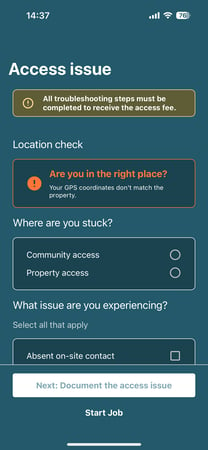
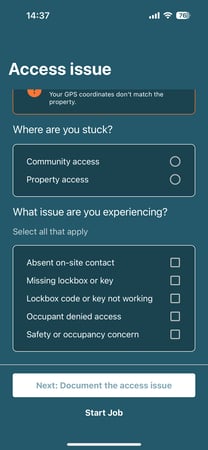
- Identify the issue. Select whether the access issue is at the community or property level, then choose the appropriate issue type.
- Document the issue. Record a short video of the access issue to provide proof for the client.
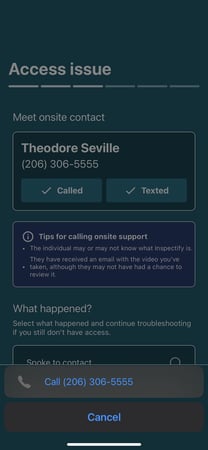
- Contact the appropriate parties. Follow the in-app prompts to call and text the designated access contact (if available) and/or community access personnel.
- Complete final documentation. If you are unable to reach the appropriate contact, take a photo of the property when prompted.
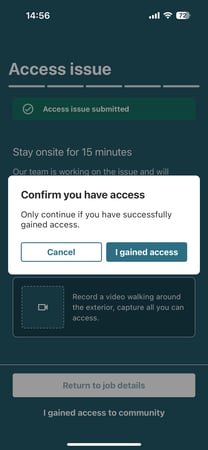
- Inspectify escalation. Once the issue is escalated, the Inspectify team will have up to 15 minutes to help resolve the access issue. During this time, you will be prompted to record an exterior walkthrough video for the client.
Note: To be eligible for an access fee if the inspection cannot be completed, you must complete all required troubleshooting steps and ensure Location Services are enabled on your device. Depending on the type of access issue selected, some troubleshooting steps may vary.

Do I need to call and text every contact?
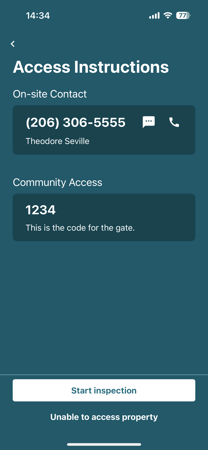
Yes. To ensure every reasonable effort has been made to gain access, you are required to both call and text each available stakeholder, such as the designated access contact and/or community access personnel.
 .
.  .
. 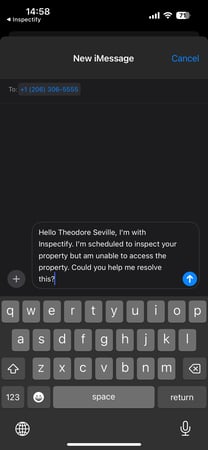
Tap the message icon to Tap the Call button to Tap the Text button to
open your device's initiate the call. send a text message.
messaging app, or tap the
phone icon to open the call
menu.
What if the contacts don't respond?
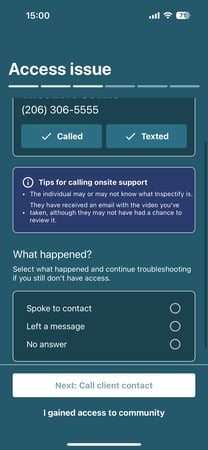
If a stakeholder does not respond, log the outcome of your communication attempt in the app (for example, Spoke to contact, Left a message, or No answer) and continue to the next troubleshooting step.
What if I gain access while still in the troubleshooting process?
Great! If you gain access at any point during the troubleshooting process, simply tap Start Job to exit the guide and begin your inspection. There is no need to complete the remaining troubleshooting steps once access has been obtained.
What if I encounter a safety or occupancy concern?
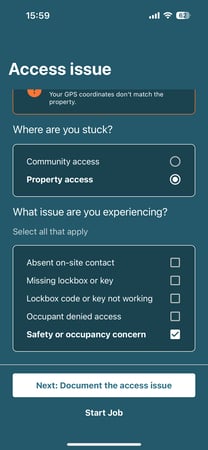
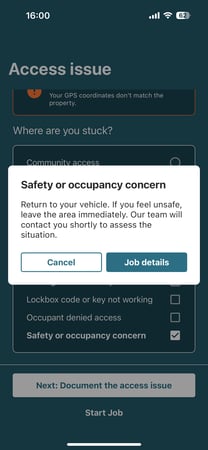
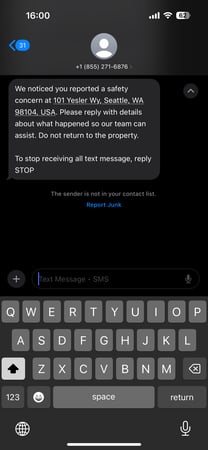
Your safety is our top priority. If you encounter a safety concern, return to your vehicle or another safe location and select Safety or occupancy concern in the app. This will immediately escalate the issue to the Inspectify team.
 .
.  .
. 
Can I select multiple reasons for an access issue?
Yes. In the What issue are you experiencing? section, select all options that apply to your current situation. This helps ensure the access issue is accurately documented and routed appropriately.
Will this work if I have poor cell service?
Yes. The troubleshooting process works offline. Complete all required steps as prompted, and your documentation and escalation request will automatically sync once you regain a cellular or Wi-Fi connection.
Note: Because text messages are time-sensitive, any SMS notifications that could not be sent while your device was offline will not be sent automatically after your connection is restored. This helps prevent delayed or confusing notifications.
What should I do if I encounter an access issue but have no cellular service?
You should still proceed with the access troubleshooting steps and document the issue in the app. If the app prompts you to contact someone, select No cellular service as the outcome for the call or text. While you complete your required 15-minute on-site wait time, try to find a location on the property with cellular reception if it is safe and possible to do so.
If I’m inspecting a multi-unit property and can't get into one unit, can I move on to the others?
Because the final report must include all units, please attempt to resolve the access issue for the current unit using the troubleshooting process before proceeding to the remaining units.
The app is asking me to "Verify Location." Why is this necessary?
We use your phone's GPS location to verify that you've arrived at the correct property.
I accidentally closed the troubleshooting guide. How do I get back to it?
Simply reopen the app and tap your active job card to return to the troubleshooting guide and continue where you left off.
Can I skip the self-guided steps and just call Support directly?
To be eligible for an access fee if the inspection cannot be completed, you must complete all required troubleshooting steps.
We strongly advise against skipping the troubleshooting steps. Our Support team relies on the information collected during the in-app troubleshooting process to diagnose the issue. If you contact Support before completing the required steps, you'll likely be asked to perform the same checks before the issue can be escalated to the client, which may delay resolution.