
How to Add a New Service to an Existing Order
If you need to request an additional inspection for a property, you can easily add a new service directly to an existing order from your Customer Dashboard.
Step-by-Step Instructions
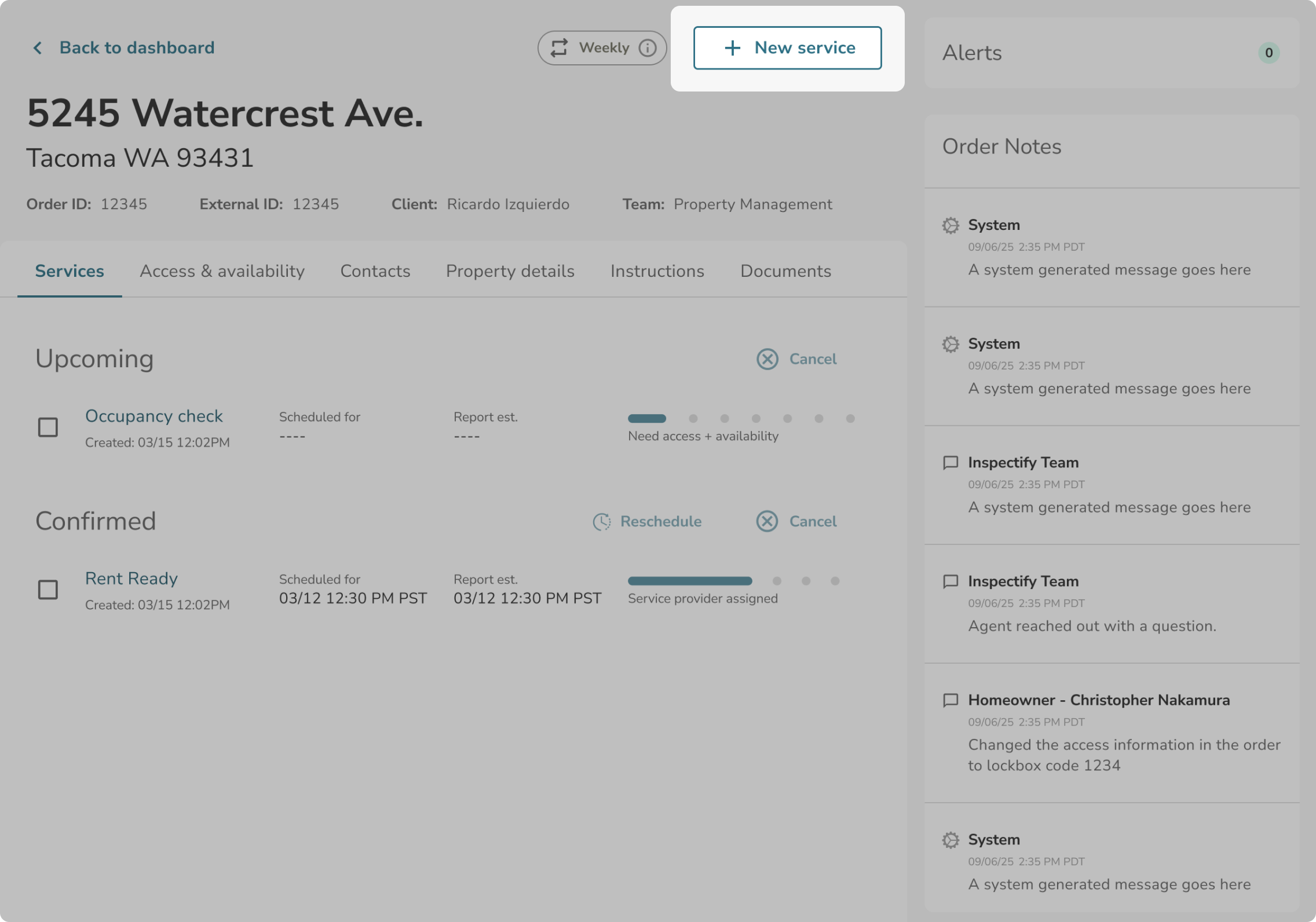
- Navigate to the Order Details Page: First, open the specific order you want to update from your Orders Dashboard.
- Click "+ New service": Near the top right of the Order Details page, click the + New service button. This will open the "Add service" pop-up.
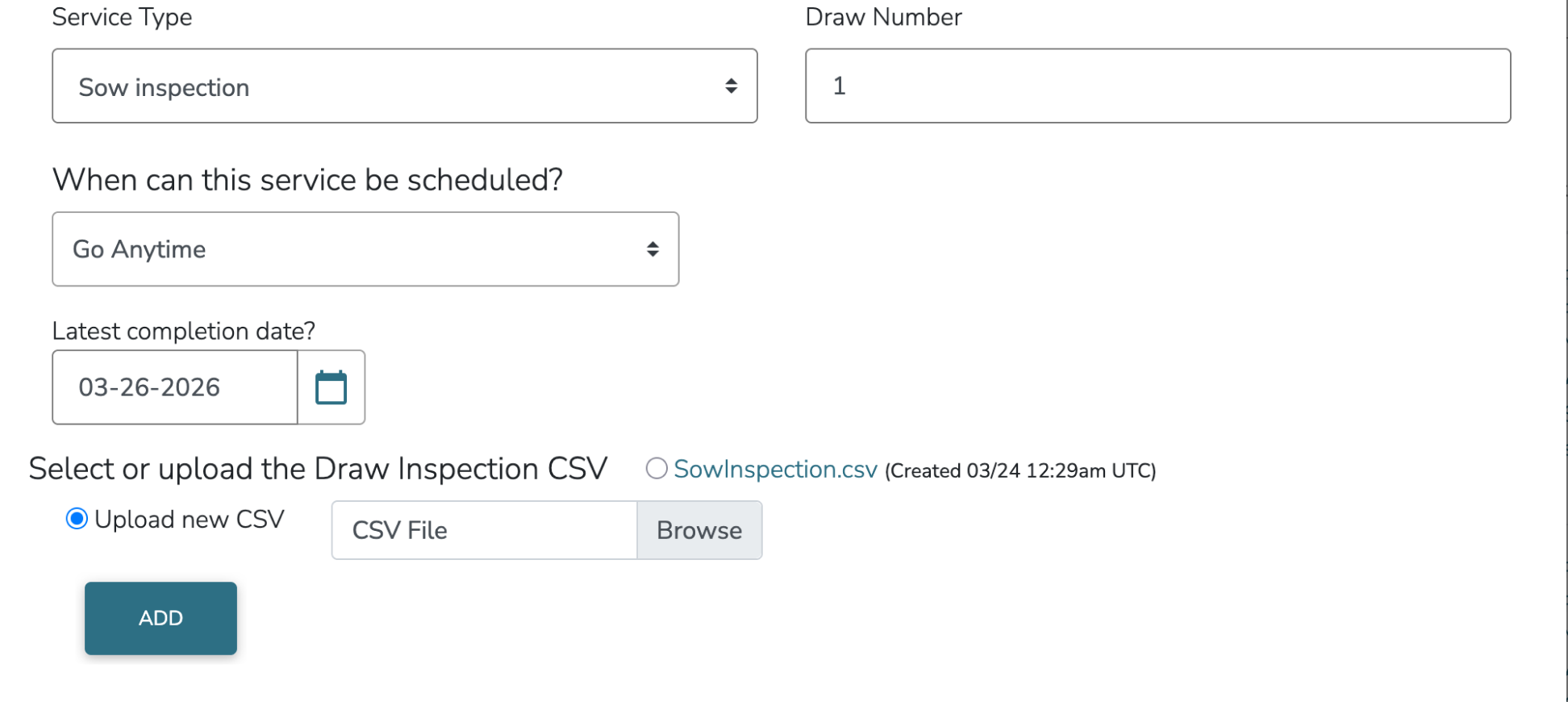
- Select the Service Type: Use the dropdown menu to choose the specific type of inspection you need to add. This list will include all of the inspection types configured for your team, and it is a required field.
- Choose Scheduling Preferences: Under the "When can the service be scheduled?" section, the system will default to whatever the current availability type is on your order, but you can choose between two options:
- Go anytime: Selecting this option will update the order to a "go anytime" status once the form is submitted.
- Provide availability: Selecting this option updates the order to an appointment-based service and expands the form to show a weekly availability calendar so you can select specific time slots. Please note: Submitting new availability through this calendar will overwrite any existing availability currently on the order.
- Set a Latest Completion Date (If Applicable): If your team's account is configured to collect a latest completion date, you will see this field. It will automatically display the current "latest date" on the order if one already exists.
- Submit your request: Once you have filled out the required fields, submit the form to finalize adding the new service to your order.