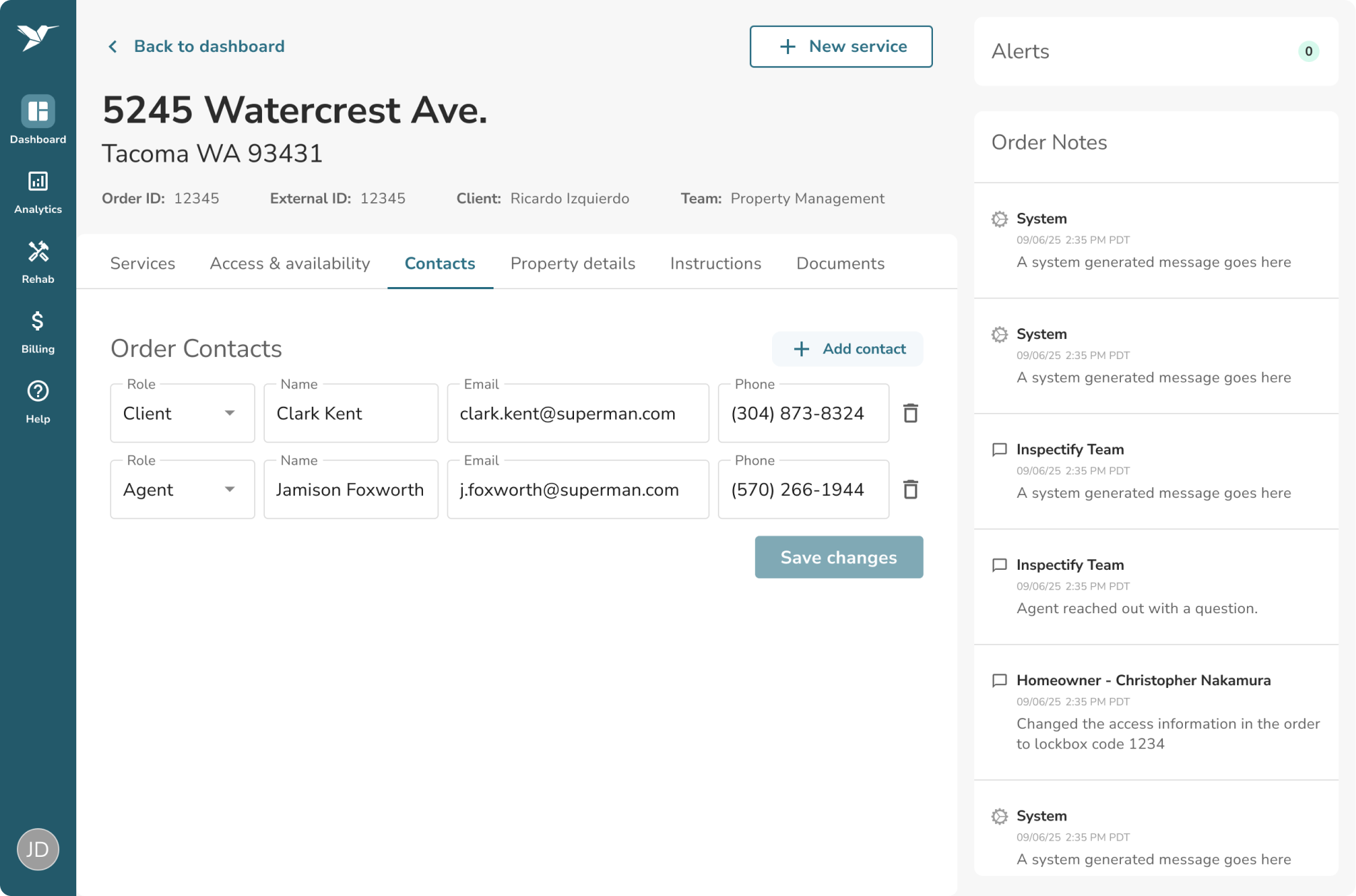
How to Edit Contacts on an Order
To manage the stakeholders associated with your order, navigate to the Contacts tab on the Order Details page.
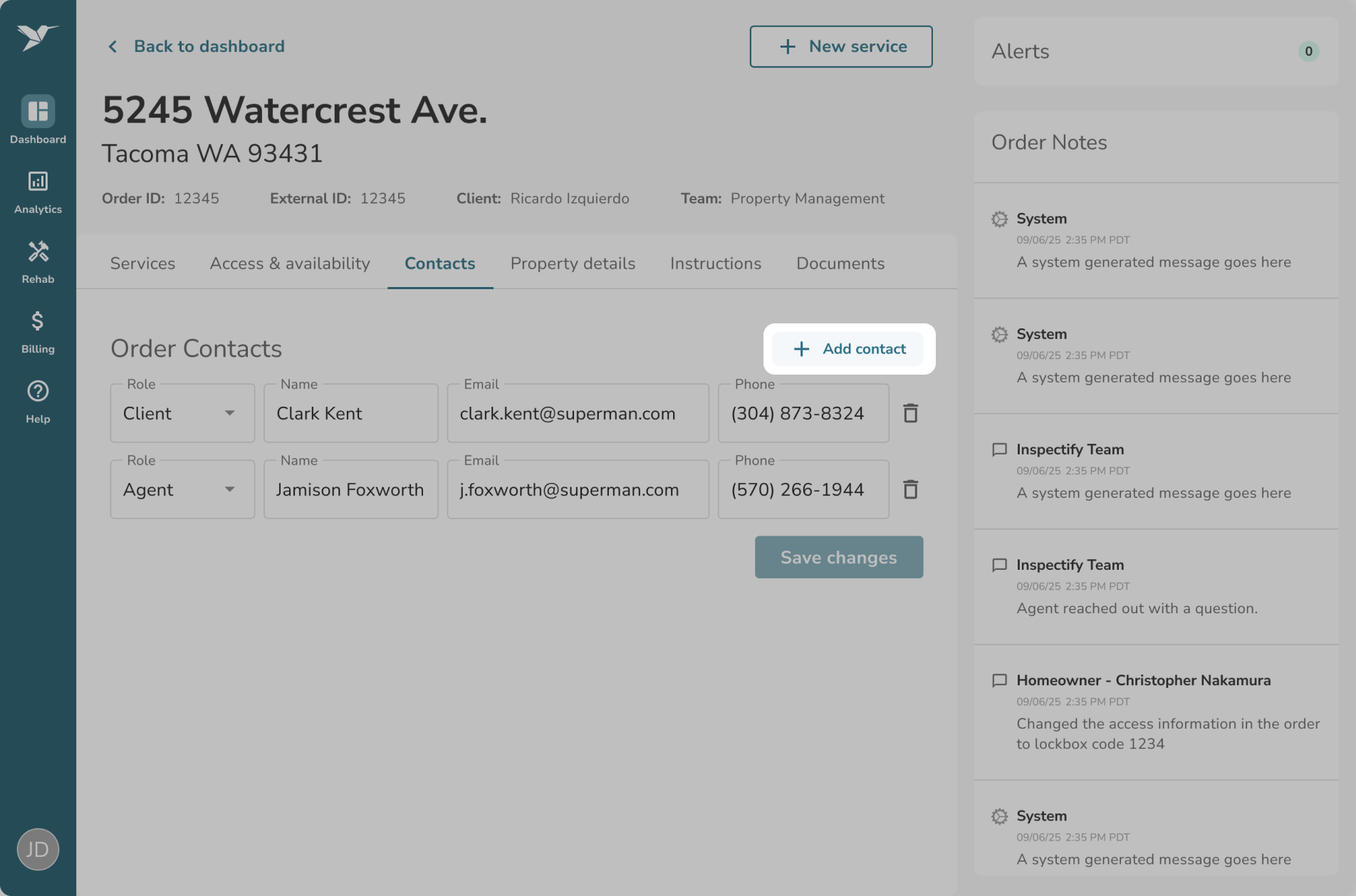
To add a contact:
Click the Add contact button to create an empty row. Use the dropdown menu to select the contact's role, fill out their required information, and click Save changes.
To edit a contact:
Simply click into the field you would like to update and then save your changes.
Note: If an "On-site Contact" is edited here, their information will automatically update in your access instructions as well.
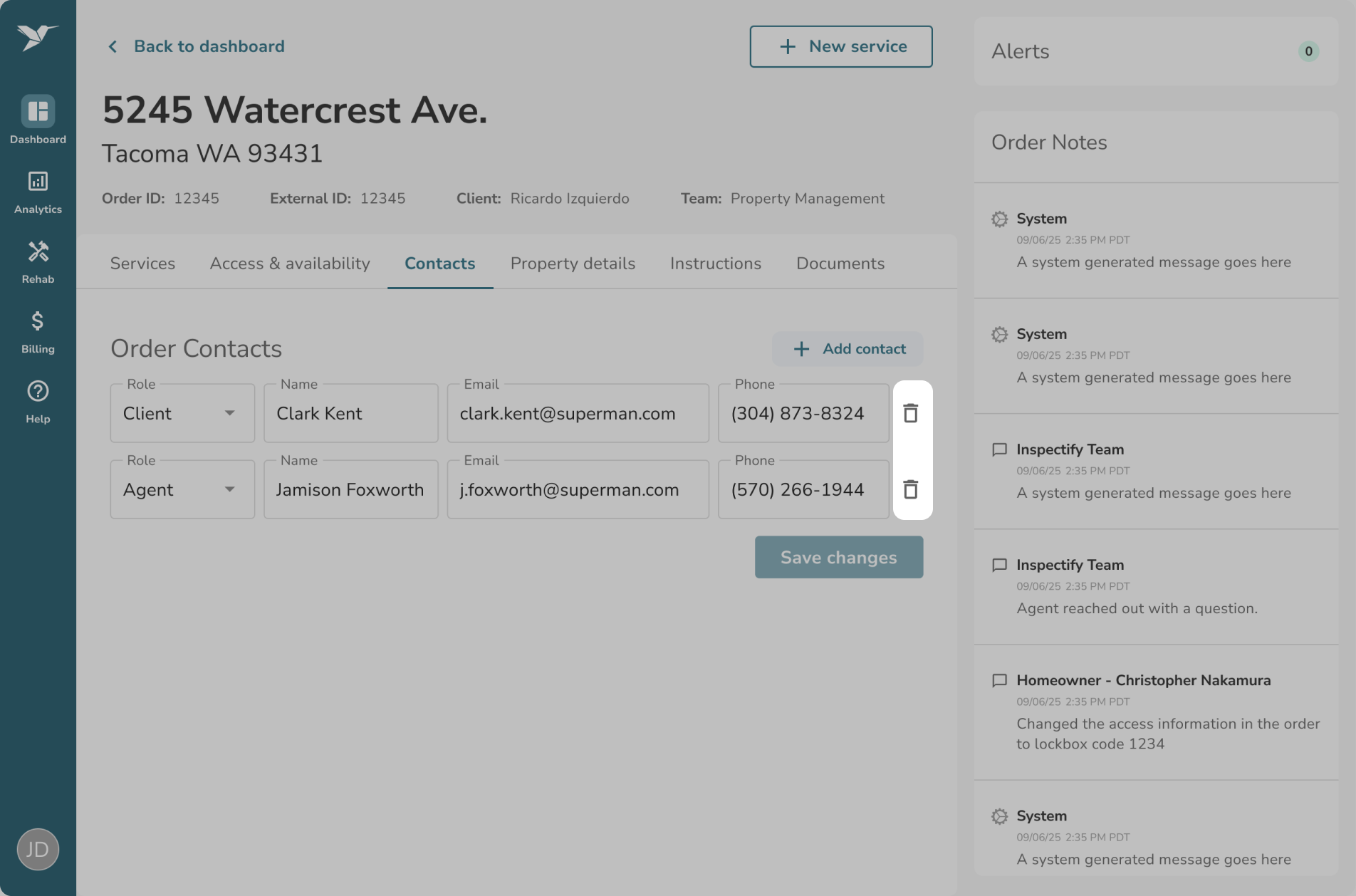
To remove a contact:
Click the Trash icon next to an existing contact to hide them, and then save your changes.