
How to generate Rently/Oaks code:
- Open the Darwin Homes website: https://vendors.origin.rent/access
- Go to Vendor PIN as seen below.
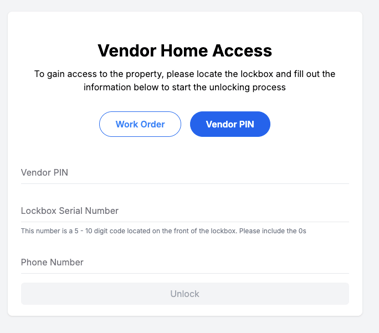
- Vendor PIN: in the order
- Lockbox Serial Number: The serial number will be provided on a sticker at the top of the lockbox.
- Phone Number: Please enter your phone number so the system can send you a text message with the code.
4. Click the Unlock button on the webpage.
Note: The generated codes are usually 7-9 digits long. The 4-digit lockbox codes in the access instructions are for combination lockboxes and won’t be accepted on the electronic keypad.
How to Wake Up the Rently Keypad
Watch the video below for instructions on how to wake up the Rently keypad. Start at 1:20 and stop at 1:42.
Types of Electronic Keypads
If you have multiple types of Rently/Oaks electronic keypads, this section can be used to provide instructions or examples for each keypad type.
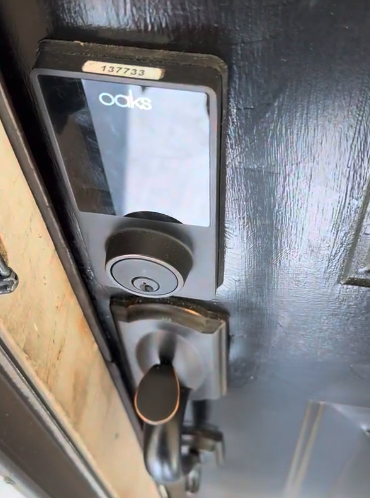
Oaks Keypads
Rently Keypad Types
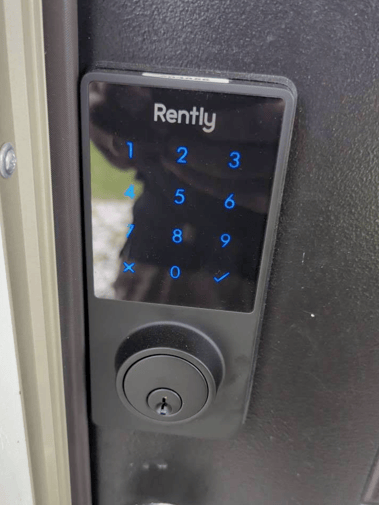
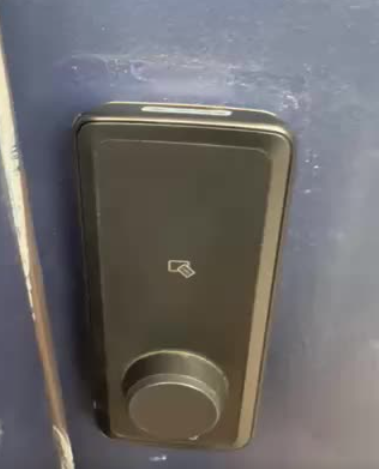
Note: No keycard is required to use this keypad. To wake up the keypad, simply place your palm in front of it. If needed, you can also flip open the circular portion of the keypad to use a physical key.
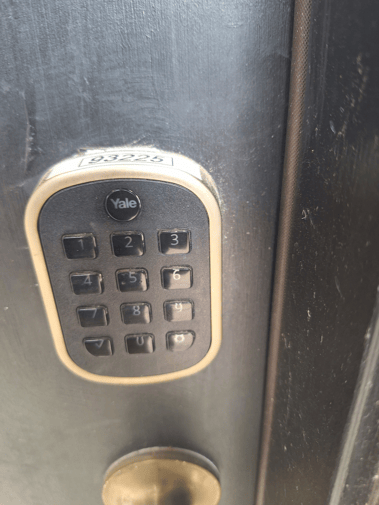
Yale Locks
Further Assistance
If you run into any issues accessing a property with a Rently/Oaks keypad, please text us at 855-271-6876 with a photo of the keypad that clearly shows the serial number.
We’ll be happy to help troubleshoot any access issues while you are on site. Please be aware that you may be required to provide a video demonstrating access through the Rently keypad.