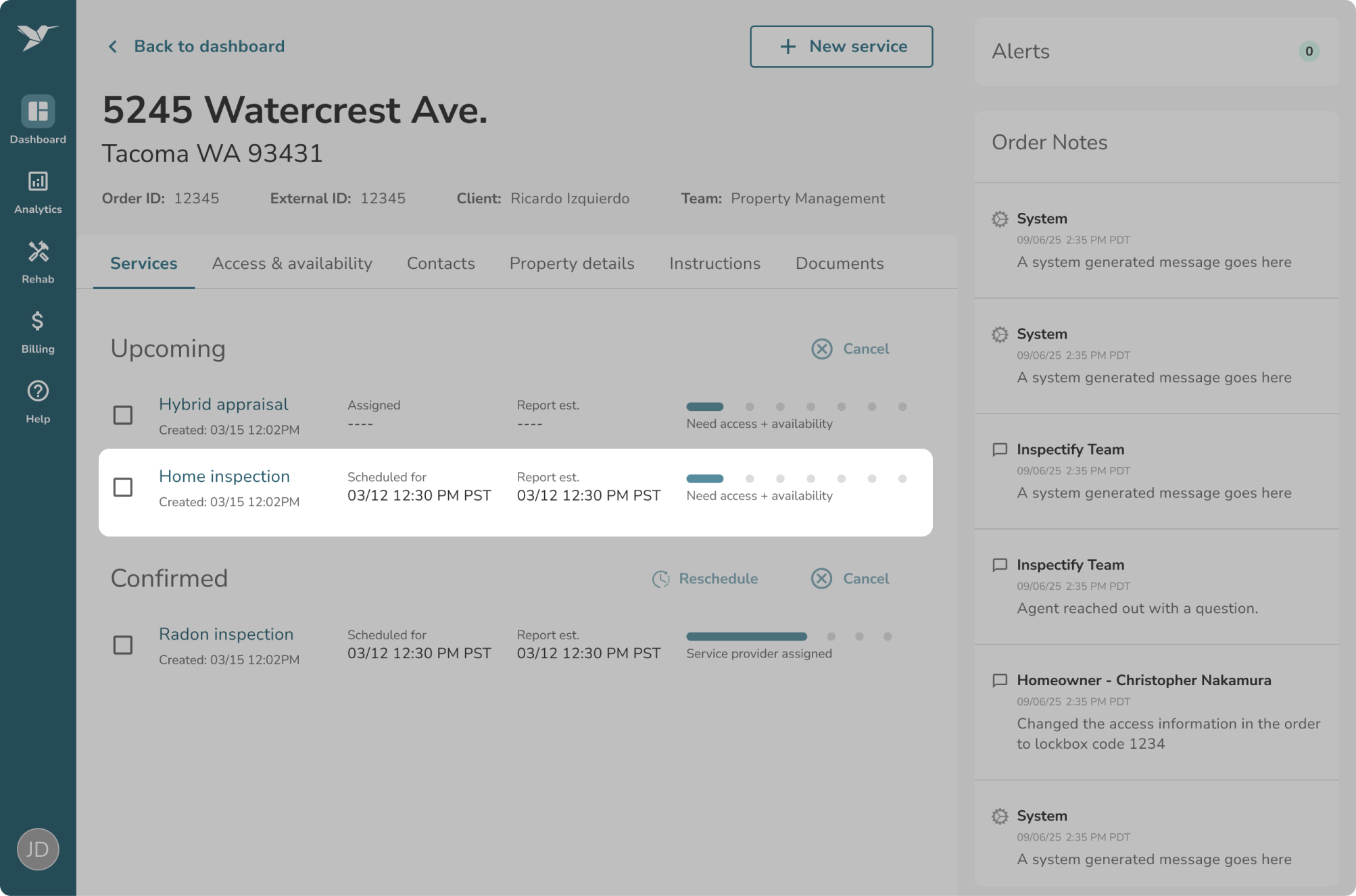
How to Reschedule a Service on an Order
If you need to change the date or time of a confirmed service, navigate to the Services tab on your Order Details page.
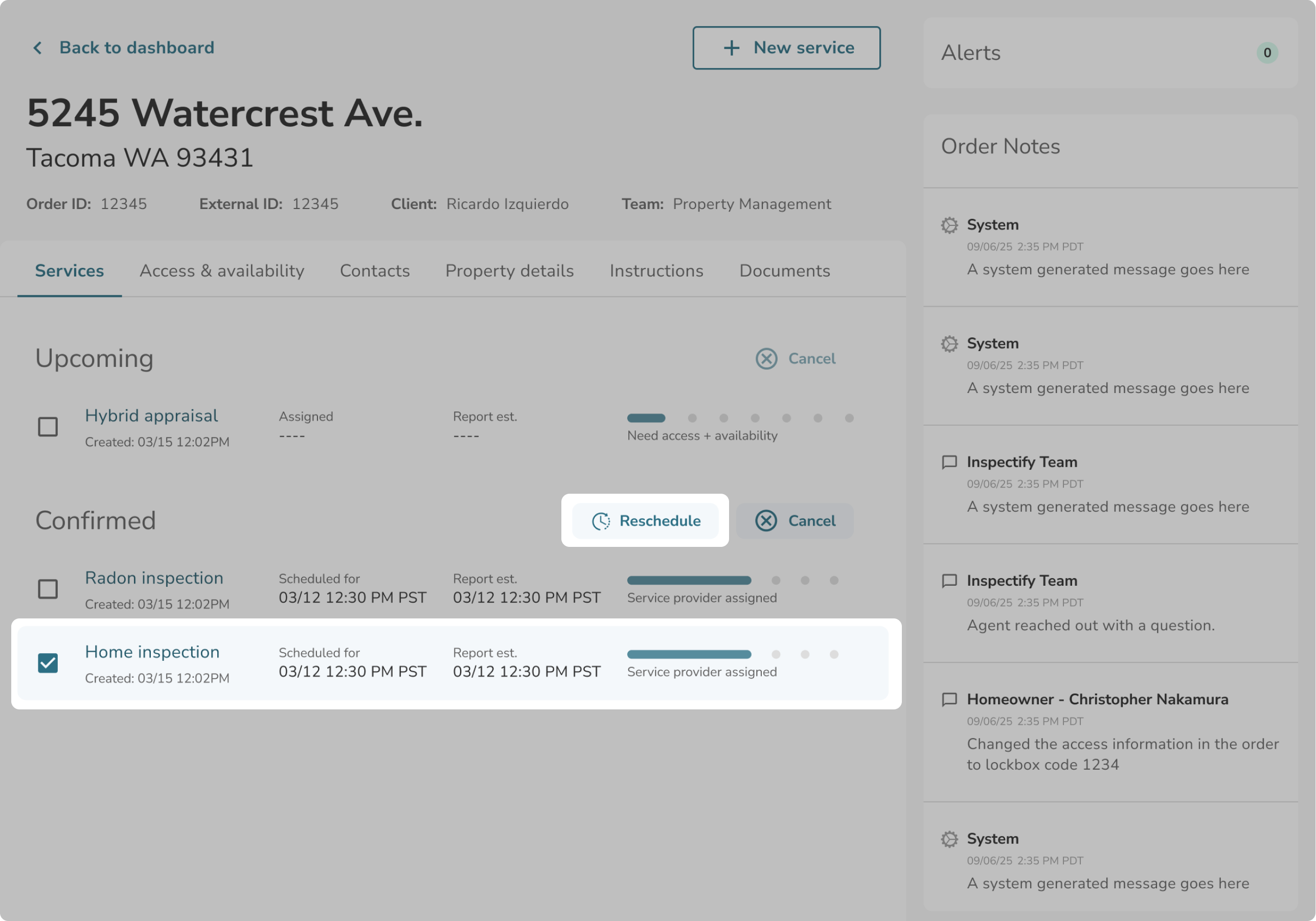
- Look under the Confirmed section to find your scheduled service.
- Select the service by clicking the checkbox next to it.
- Click the Reschedule button.
- This will open a pop-up where you can select a new date and time for the appointment.
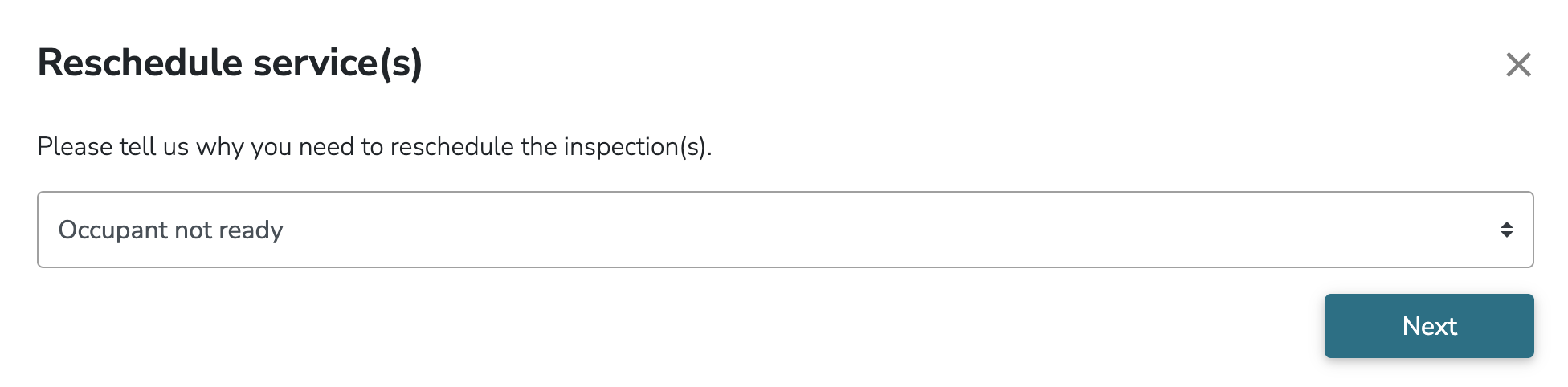
- Select the reason for the reschedule.
- Follow the prompts to provide new availabilities or send a request to your contact to provide new availabilities. Note: The example below shows an example in which you would provide availabilities yourself.
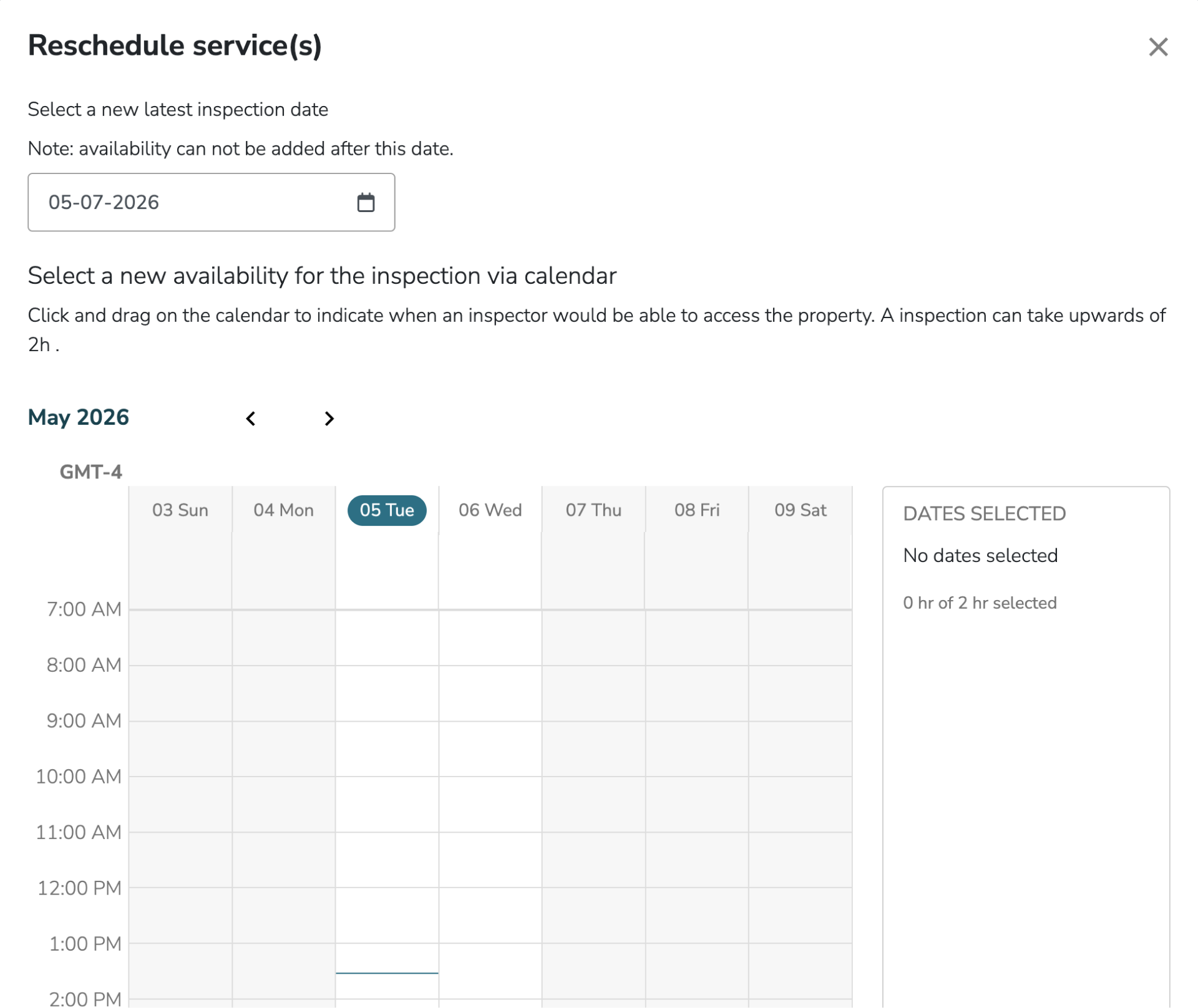
- Submit the request.
Upon returning to your Order Details page, the service(s) will now appear in the Upcoming section.