
Order Alerts: What They Are and How to Resolve Them
To ensure your property inspections and appraisals are completed as smoothly as possible, the Customer Dashboard features an "Alerts" system. An order Alert is a specific notification that flags when we need action or information from you (or your designated contact) before we can continue working on your order.

Types of Order Alerts
If an order is held up, you will see one of the following alerts displayed on the order card:
- Need Access: We have the scheduling availability for the property, but we are missing instructions on how the contractor can enter the home.
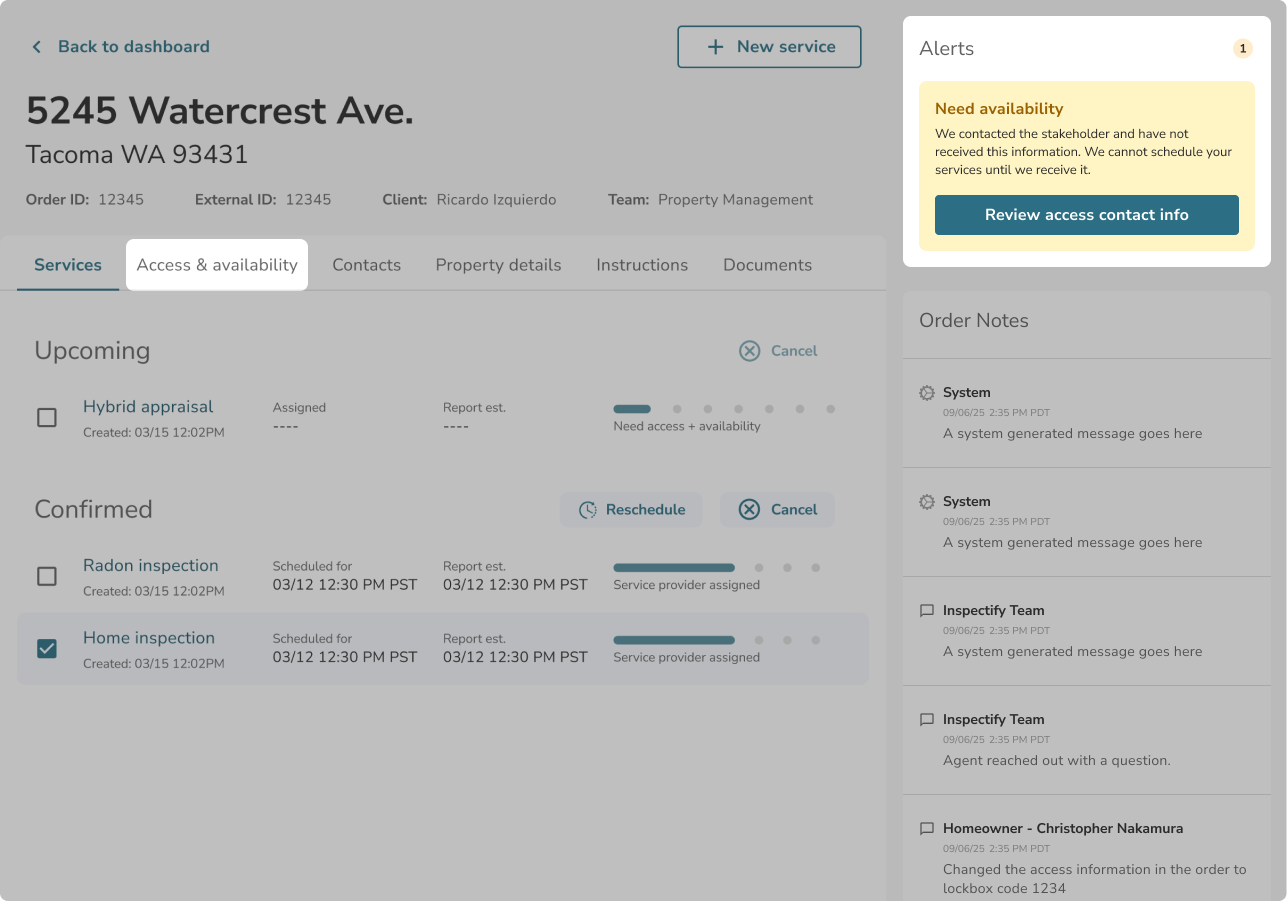
- Need Availability: We have the property access instructions, but we do not know when the property is available to be scheduled.
- Need Access & Availability: We are missing both the entry instructions and the scheduling availability for the property.
- Need additional documents: For appraisal orders, this means we are waiting on any additional documents you opted to provide the appraiser to consider when determining the property's value.
- Incomplete: The order request has not been fully submitted.
Note: If an order has multiple issues holding it up (such as needing both access and additional documents), the tag will display "X alerts" to indicate multiple items need your attention.
Whenever you see an alert, you can easily find out how to fix it by hovering over or tapping the "i" info icon located right next to the alert tag.
Clicking this icon will open a pop-up message explaining exactly what is holding the order up.
How to Resolve an Alert
- Select “View Order” to navigate to the Order Details page.
- In the case of an Incomplete order, this option will instead say “Finish Order” which will take you back to our booking flow where you can complete your order request.
- Once on the Order Details page, follow the instructions provided in the Alerts section on the top right of the page.
Filtering by Alerts
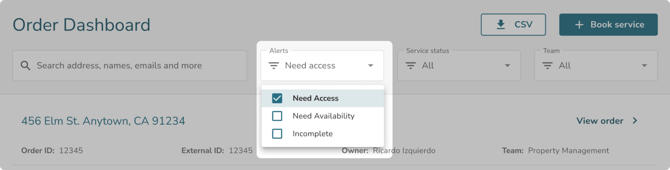
To help you manage your workload and quickly clear blocked orders, you can use the Alerts filter located in the top navigation area of your Orders Dashboard. This allows you to filter your view to only show orders tagged as Need Access, Need Availability, or Incomplete, ensuring you can quickly identify and resolve the orders that require your immediate attention.