
Understanding Your Order Cards
On your Orders Dashboard, each property request is organized into an individual "order card" to provide a clear, quick overview of its details and progress.
Here is a breakdown of the information you will find on each order card:
1. Order Information Header
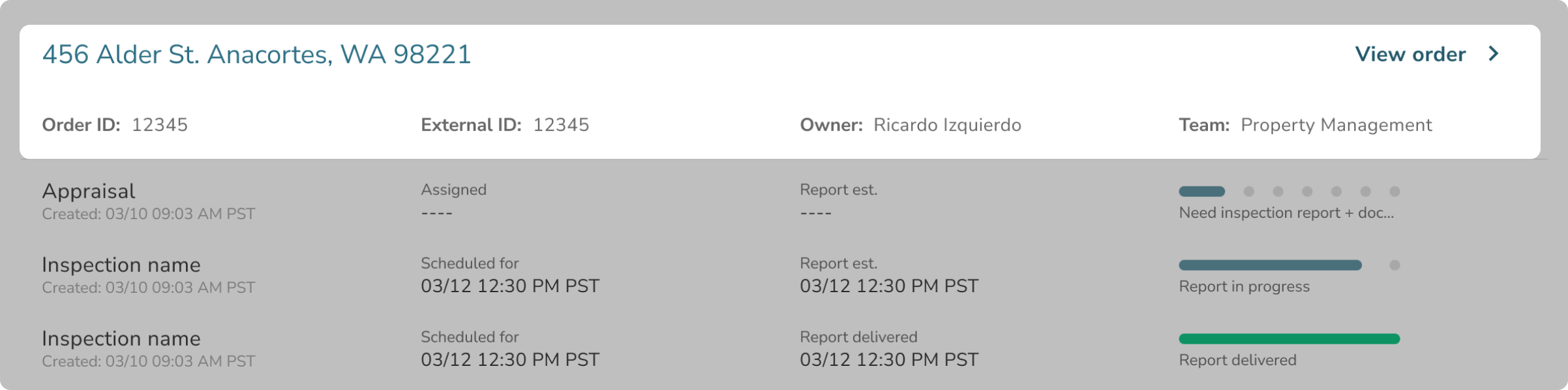
At the top of every order card, you will see the property's Address. Directly below the address, you can find the following high-level details:
- Order ID: The unique identifier for your order in our system.
- External ID: Your team's external identifier (if your team is configured to use this feature).
- Owner: The name of the specific stakeholder who created the order.
- Team: The name of your team or organization.
- View Order Button: Clicking this button will open the full Order Details page, where you can view all information and perform self-service actions for that specific order.
2. Order Alerts

If an order requires your attention before it can proceed, an alert tag will be displayed prominently on the card. Common alerts include "Need Access," "Need Availability," "Incomplete," or "Need additional documents".
Whenever you see an alert, you can hover over or tap the circle "i" info icon next to it. This will display a pop-up message explaining exactly what is missing and instructions on how to resolve the hold-up (such as navigating to the Access & Availability tab to update information).
3. Service Details & Progress Tracker
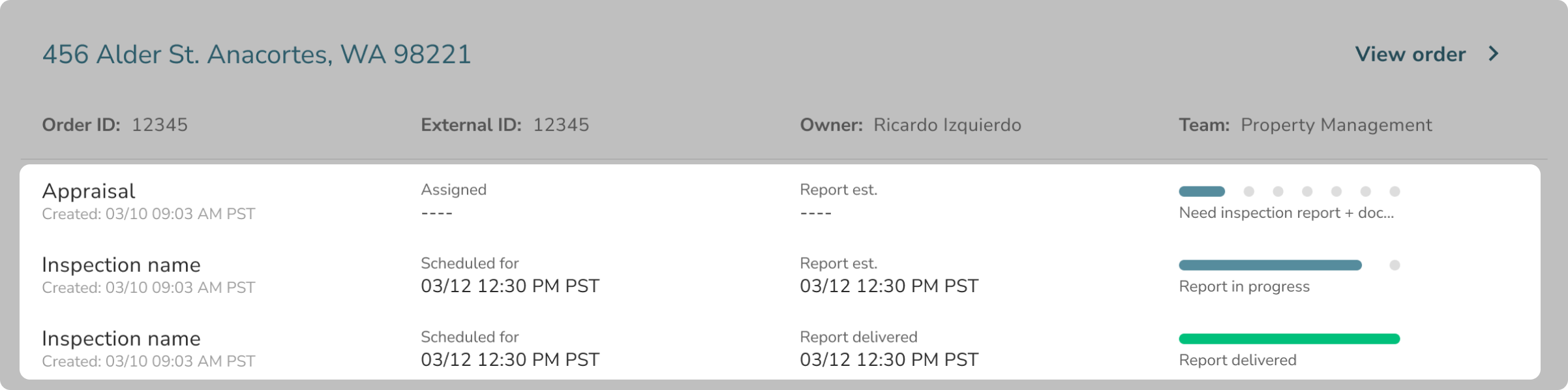
The lower section of the order card lists every individual service (e.g., specific inspections or appraisals) requested for that property. To help you prioritize, services with the soonest scheduled dates are listed at the top.
Each individual service row contains:
- Service Name: The specific type of inspection or appraisal being performed.
- Progress Bar and Service Status: An 8-point visual tracker that illustrates exactly where the service is in its lifecycle. The progress bar updates automatically as the service moves through steps like "Finding a service provider" or "Report in progress," eventually turning green when the "Report delivered" status is reached.
- Scheduled For / Assigned Date: This dynamic field tells you when an inspection is booked (Scheduled For) or when an appraiser has been given the job (Assigned).
- Report est. / Report Delivered: This field provides your dynamic Report Delivery Estimate so you know when to expect your documents. Once the documents are ready, this field will update to show the final "Report delivered" date and time.