
This usually happens when you have a poor Wi‑Fi or data connection. You can still record information in the inspection report and take photos offline on your phone, but a stable Wi‑Fi or data connection is required to upload photos, sync data, and publish the report.
Basic Troubleshooting Steps
Before sending local data, try these steps:
-
Fully close the app, then reopen it.
-
Log out of the app and log back in.
-
Update the app to the newest version.
How to Send Local Data to Troubleshoot App Issues
If you encounter difficulties publishing a report, sending the local data from the app can help resolve the issue. Use the steps below to send the data.
Step-by-Step Instructions
-
Open the Inspectify app on your mobile device.
-
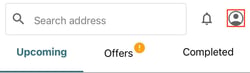
From the main screen, tap the profile icon in the top-right corner of the app.
-
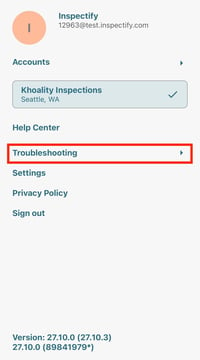
On the Account screen, scroll down to the Troubleshooting section and tap “Troubleshooting.”
-
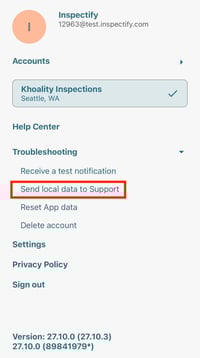
Select “Send local data to Support.”
-
Allow the app a moment to collect and send the data.
-
No additional action is required at this time.
-
If you still have issues publishing after checking your Wi-Fi or cellular data connection and sending local data to Support, don't hesitate to contact App Support for further assistance.
📩 App Support: appsupport@inspectify.com.
📱 Please include your account email and the property address in your message to help us assist you more quickly.